Developer installation
The developer install uses the source code to compile and install Finesse in a conda environment. This is the recommended way to install Finesse if you want to contribute to the project, use the latest development branch, or your own branches.
Requirements
Conda
The supported way to install Finesse is by installing it in a conda environment. You will need conda
or a similar software (e.g. mamba) to manage the conda environment(s).
How to install conda with Miniforge
To install conda, we recommend using Miniforge, which
is a minimal conda distribution that is configured to use conda-forge as
the default channel, the channel where Finesse is published. mamba is also installed with miniforge.
Follow the instructions on download miniforge or use the following command to download and execute the installer:
curl -L -O "https://github.com/conda-forge/miniforge/releases/latest/download/Miniforge3-$(uname)-$(uname -m).sh"
bash Miniforge3-$(uname)-$(uname -m).sh
Follow the instructions in the installer:
Accept the license by typing yes and press enter.
Press enter to accept the default installation location.
Type yes and press enter to initialize miniforge.
Close and reopen a terminal to start using
conda.
Download the Miniforge Windows installer
Run the installer and follow the instructions (default options are ok).
To open a prompt with
condaavailable, search for Miniforge prompt in the start menu.
For more information about installing miniforge, see the miniforge install.
Git
Finesse uses git to manage its source code. You will need it to clone the repository, change branches, update your local copy of the code, and contribute to the project.
How to install git
Follow the instructions at git-scm.com/download for your system.
or
Install git in your conda environment(s). To install it in your active environment,
within a terminal/prompt, execute the following command
conda install git
Make
For compiling code, installing Finesse, and managing the conda environment via the Makefile.
How to install make
If your system doesn’t have make available (e.g. Windows) or you want an up-to-date version (e.g. macOS),
you can install make in your environment. To add make to your active environment, execute
conda install make
VS Build Tools (Windows only)
On Windows systems, the VS Build Tools are needed to compile Finesse.
How to install the VS Build Tools
Download and execute the VS Build Tools installer.
Select the Desktop development with C++ workload.
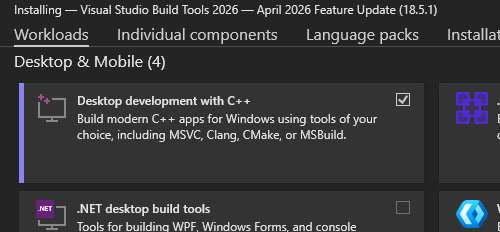
Click on Install and wait for the installation to complete.
Installation procedure
Cloning the repository
The source code is hosted on GitLab at https://gitlab.com/ifosim/finesse/finesse3. To clone the repository
on your system, open a terminal and navigate where you want your copy of Finesse source to be. During the cloning
process, a directory named finesse3 will be created in your current directory.
Using SSH to clone the repository allows a seamless interaction with GitLab. To be able to use SSH, you will need to setup your SSH keys on GitLab.
To clone Finesse using SSH, execute
git clone git@gitlab.com:ifosim/finesse/finesse3.git
You can clone the repository without GitLab authentication by using HTTPS. However, if you want to push changes to the repository, you will need an account on GitLab and your GitLab credentials will be needed for certain interaction with GitLab.
To clone Finesse using HTTPS, execute
git clone https://gitlab.com/ifosim/finesse/finesse3.git
If you initially setup your repository with HTTPS, but wish to use SSH instead, you can change the remote URL to use SSH by executing:
git remote set-url origin git@gitlab.com:ifosim/finesse/finesse3.git
Creating the environment
You can create a Finesse developer environment by using the finesse3-dev target of the Makefile. To do so, open a terminal and navigate to the Finesse source directory. Then execute
make finesse3-dev
This will automatically create a new environment called finesse3-dev, install the required packages, some additional packages, compile Finesse and install it in the environment as an editable package.
How to create the environment manually
If for any reason, you prefer to not use the finesse3-dev make target, you can create the environment by executing the following commands from the Finesse source root directory.
Create the environment, by executing from the Finesse root directory
conda env create -n finesse3-dev -f environment.ymlconda env create -n finesse3-dev -f environment-win.ymlActivate the environment and install the additional packages
conda activate finesse3-devInstall Finesse as an editable package
pip install --editable .Install the pre-commit hooks
pre-commit install
After the installation is complete, you can activate the environment created by executing
conda activate finesse3-dev
You can also run the test suite to make sure that everything is working properly
pytest tests
Installation notes
Updating after changes in the code
Because Finesse was installed in the environment as an editable package (i.e. the environment is linked
to the Finesse source directory), any modification of the Python source code, including when changing branch
with git, will be reflected in the conda environment. This is not the case for the Cython source code as what
Python sees is the compiled package. To recompile the package, execute the following in the source root directory, with the
finesse3-dev environment (or your own custom environ environment) activated:
make
For more info on how to manage conda environments see Conda environment primer.
Using ccache for faster cython compilation
If you are going to re-compile the Cython extensions often during development, it might be worth it to set up ccache. Ccache is a compiler cache. It speeds up recompilation by caching the result of previous compilations and detecting when the same compilation is being done again.